
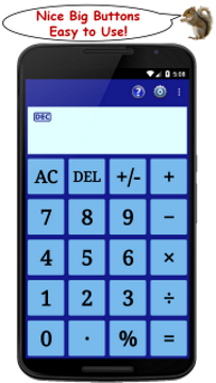
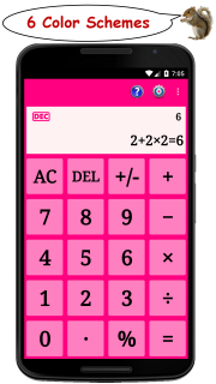
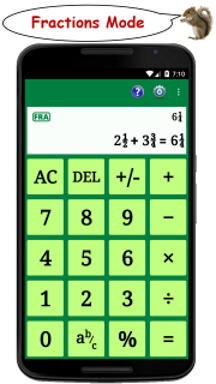
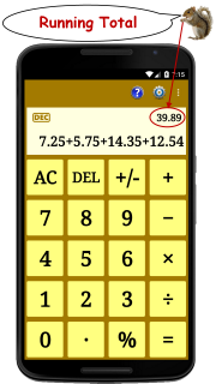
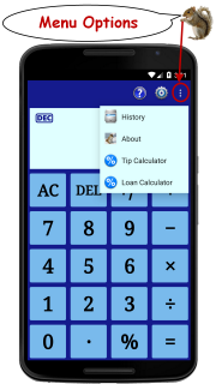
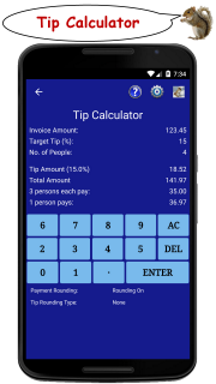
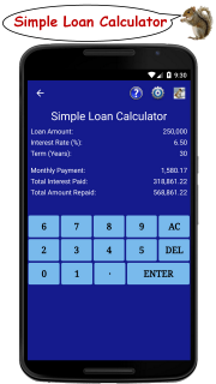
A simple, easy to use, arithmetical calculator designed to be more functional than the default installed model - also includes a tip calculator and a loan calculator, both of which can be accessed from the menu - features of the main calculator include:
- decimal mode
- fractions mode
- running total of each calculation shown as it is entered
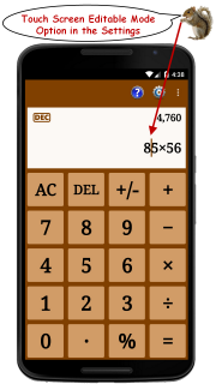
- full text of the calculation is displayed as it is entered
- the output text can be set to scroll either horizontally (the default) or vertically
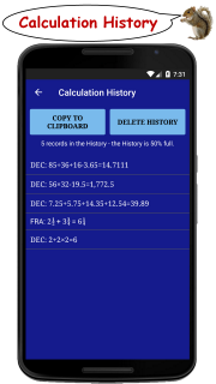
- full text of each calculation is stored in the history
- results of each calculation can be reclaimed from the history and reused in future calculations
- a range of colour schemes to suit different moods
Useful whilst shopping to monitor a running total of your purchases.
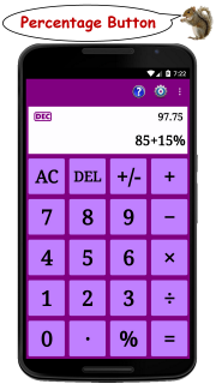
Use it to determine discounts, surcharges, sales tax etc. via the percentage function.
A help section, where the main functions of the application are explained, can be accessed via the menu.
Please note that this calculator only provides basic arithmetical operations - if you require more complex operations, it is recommended that you download the developer's Scientific Calculator.